Contents
Item Aliases
Item aliases provide alternate part numbers for the same inventory item, enabling cross-referencing between your internal item IDs and external numbering systems. This simplifies transactions when suppliers, customers, or legacy systems use different part numbers to identify the same product.
Common Use Cases:
- Supplier Part Numbers: Map supplier catalog numbers to your internal SKUs for purchasing and receiving
- Customer Part Numbers: Link customer-specific item codes for sales orders and quotes
- Manufacturer Model Numbers: Cross-reference OEM part numbers for warranty and service operations
- Legacy System Migration: Bridge old and new item numbering during system transitions
- SKU Consolidation: Support multiple naming conventions when merging catalogs from acquisitions
Access: Inventory → Items → Item Alias List
| Action | Path |
|---|---|
| View all aliases | Inventory → Items → Item Alias List |
| Add new alias | Inventory → Items → Item Alias List → Add Item Alias |
| Search or filter | Inventory → Items → Item Alias List (use report column filters) |
| Export alias list | Inventory → Items → Item Alias List → Print / CSV / XLSX |
Permissions:
- View alias list: Requires Security ID 294 (Item Alias List)
- Add or edit aliases: Requires Create/Modify Item Alias permission
Understanding Item Aliases
An item alias creates a one-to-many relationship where a single inventory item can have multiple alternate identifiers. When you enter an alias during a supported transaction, the system automatically resolves it to the correct internal item ID.
Key Characteristics:
- Unique by policy: Each alias is intended to map to one item. The system validates for duplicates during entry.
- Automatic Resolution: Aliases are accepted in receiving and other core stock workflows wherever item IDs are entered
- Transparent: Users don’t need to know whether they’re entering an alias or native item ID
- Warehouse-aware: Aliases can be warehouse-specific or global (see Multi-Warehouse Considerations)
Alias vs. Primary Item ID: Your primary item ID (ShortID) is the master identifier used throughout Inventory Pro for reporting, stock levels, and internal operations. Aliases are convenience mappings that point to the primary ID but don’t replace it.
Alias List Behavior
The Item Alias List is a report-style page with built-in search, filtering, and export-not a simple maintenance grid.
- Search and filter: Use column filters to narrow by alias ID, item, or warehouse
- Export: Standard Print, CSV, and XLSX export controls are available directly from the list
- Audit and share: Export the alias list to share supplier part number cross-references with purchasing teams, or to review before cleanup
Managing Item Aliases
Adding Aliases
Create individual aliases for cross-referencing supplier catalogs, customer specifications, or alternative naming conventions.
Workflow:
- Navigate to Inventory → Items → Item Alias List
- Click Add Item Alias (requires Create/Modify Item Alias permission)
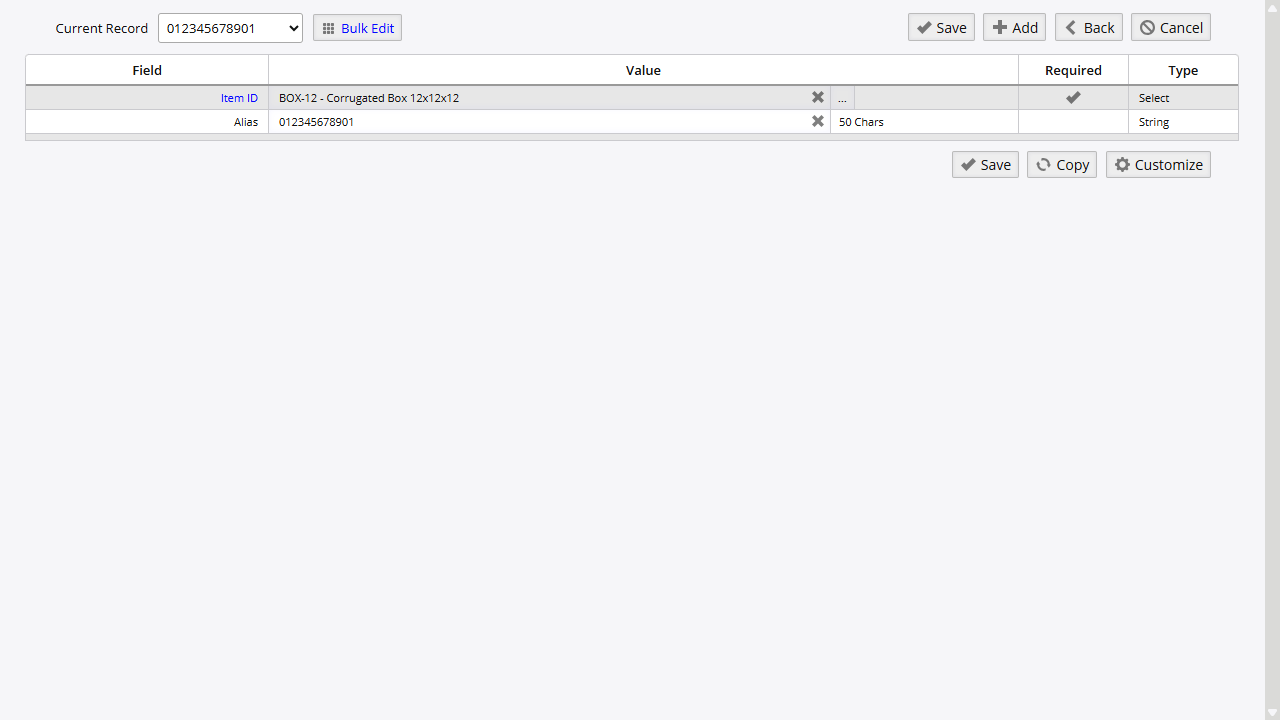
- Fill in required fields:
- Item ID: Select the inventory item this alias represents (search by ID or description)
- Alias ID: Enter the alternate part number (50 characters max)
- Warehouse (Optional): Restrict alias to a specific warehouse if the same alias means different items in different locations
- Click Save
Validation:
- Alias ID must be unique (system validates for duplicates during entry)
- Item must exist in your inventory master
Tips:
- Use a consistent naming pattern (e.g.,
VENDOR-PARTNOorCUST-ABC-12345) - For manufacturer model numbers that are globally recognized, consider the item’s Manufacturer Model field instead-it is also checked during barcode scans
There is currently no dedicated bulk import tool for item aliases in the standard Import and Export interface. Plan to add and maintain aliases through the Item Alias List.
Editing Aliases
Modify existing aliases to correct data entry errors or update supplier catalog changes.
Workflow:
- Navigate to Inventory → Items → Item Alias List
- Search for the alias or item
- Click the alias record to open the edit screen
- Make changes to Alias ID, Item ID, or Warehouse
- Click Save
Important: Changing an alias doesn’t affect historical transactions. Past receipts and issues remain linked to the original item regardless of alias updates.
Deleting Aliases
Remove obsolete aliases when suppliers discontinue part numbers or after completing system migrations.
Open the alias record from Item Alias List and use the delete action on that record to remove the alias. Confirm the deletion prompt before continuing.
Safe to Delete When:
- Supplier has discontinued the part number
- Customer no longer uses the alternate ID
- Legacy system migration is complete
- Duplicate or erroneous entries exist
Warning: Deletion is permanent and cannot be undone. Historical transactions remain intact, but future attempts to use the deleted alias will fail.
Using Aliases in Transactions
Aliases resolve automatically in supported stock and order workflows. Purchase order receiving is a common example. Other stock screens use the same alias lookup behavior when item entry is supported.
Barcode Scanning with Aliases
The backend barcode lookup checks aliases as part of a defined resolution order:
Scan Resolution Order:
- Primary Item ID (ShortID)
- UPC/Barcode (Manufacturer Model field)
- Supplier Part Number (from Supplier Catalog)
- Item Alias
If you scan “VENDOR-ABC-123” and it doesn’t match the primary ID, UPC, or supplier catalog, the system checks aliases before rejecting the scan.
Mobile scanning: Mobile devices use the same backend resolver. Validate mobile-specific behavior in your own environment before depending on alias-only scanning workflows.
Purchase Order Receiving
When receiving against purchase orders, enter the supplier’s part number (if configured as an alias) instead of your internal item ID.
Workflow:
- Navigate to Orders → Purchasing → Purchase Orders → Receive
- In the Item ID field, enter the supplier’s part number
- System resolves to your internal item and displays the description
- Complete quantity, location, and serial number fields
- Receive to update inventory
Note: Purchase order line views include an alias cross-reference field, making it easier to match supplier part numbers on PO lines to your internal items.
Other Stock Workflows
Issuing, moving, and cycle count screens share the same item resolution infrastructure as receiving. Enter the alias ID in the Item field and the shared lookup layer resolves it to the internal item before the transaction continues.
Multi-Warehouse Considerations
Global Aliases (Warehouse = blank): Alias resolves to the same item across all warehouses-ideal for manufacturer model numbers or corporate-wide supplier catalogs.
Warehouse-Specific Aliases (Warehouse = specified): When resolving an alias, the system first looks for a warehouse-specific match for the current warehouse. If none is found, it falls back to a global alias row. This allows the same external part number to map to different items in different locations.
Example:
- Warehouse A: Alias “VENDOR-123” → Your Item “WIDGET-RED”
- Warehouse B: Alias “VENDOR-123” → Your Item “WIDGET-BLUE”
- All other warehouses: Falls back to the matching global alias row
Recommendation: Use global aliases unless you have a specific business need for warehouse-specific mappings.
Best Practices
Alias Naming Conventions
Consistent naming patterns improve findability and reduce errors:
| Pattern | Example | Use For |
|---|---|---|
VENDOR-PARTNO | ACE-ABC-123 | Supplier-specific part numbers |
CUST-NAME-SKU | CUST-FORD-X789 | Customer-assigned IDs |
MFG-MODEL | MFG-DELL-LAT5520 | Manufacturer model numbers |
LEGACY-ID | LEGACY-OLD-SYSTEM-456 | Temporary migration IDs |
Recommendation: Choose one pattern per alias type and document it for your team.
When to Use Aliases vs. Other Fields
| Scenario | Recommended Solution |
|---|---|
| Supplier’s unique part number | Alias or Supplier Catalog |
| Globally recognized manufacturer model | Manufacturer Model field (system checks during barcode scans) |
| Customer-specific SKU | Alias (if used in transactions) |
| Barcode/UPC | Manufacturer Model field |
| Internal alternate naming | Alias only if it appears on external documents |
Why This Matters: Overusing aliases creates maintenance overhead. Use aliases for identifiers that appear on external documents (POs, packing slips, customer orders) where automatic resolution saves time.
Maintenance and Cleanup
Regular Reviews:
- Quarterly: Export alias list and review with purchasing/sales teams for obsolete entries
- After Supplier Changes: Update or remove aliases when suppliers change part numbers
- Post-Migration: Delete temporary legacy system aliases once transition is complete
Identifying Candidates for Removal:
- Supplier part numbers for discontinued suppliers
- Customer-specific IDs for inactive accounts
- Duplicate mappings from data entry errors
Related Topics
- Receiving Stock - Using aliases in receiving workflows and barcode scanning
- Purchase Orders - Supplier part number cross-referencing during PO processing
- Shipping Orders - Customer part number mapping for order fulfillment
- Mobile Inventory - Barcode scanning on mobile devices
- Import and Export - Data import and export utilities
On this page