QuickBooks Desktop Integration
Export warehouse data from InventoryPro to QuickBooks Desktop automatically, keeping your accounting system current without double-entry.
Accounting Data Synchronization
The InventoryPro QuickBooks integration exports your warehouse records directly into your accounting system. Items, vendors, and customers created or updated in InventoryPro appear in QuickBooks at the next export cycle, so your accounting team does not have to re-enter warehouse data.
Received purchase orders export to QuickBooks with linked item receipts, and shipped orders generate QuickBooks invoices with full line-item detail. Your accounting team works from the same order data the warehouse sees, which means fewer discrepancies at reconciliation time and less time spent chasing down mismatched quantities or pricing.
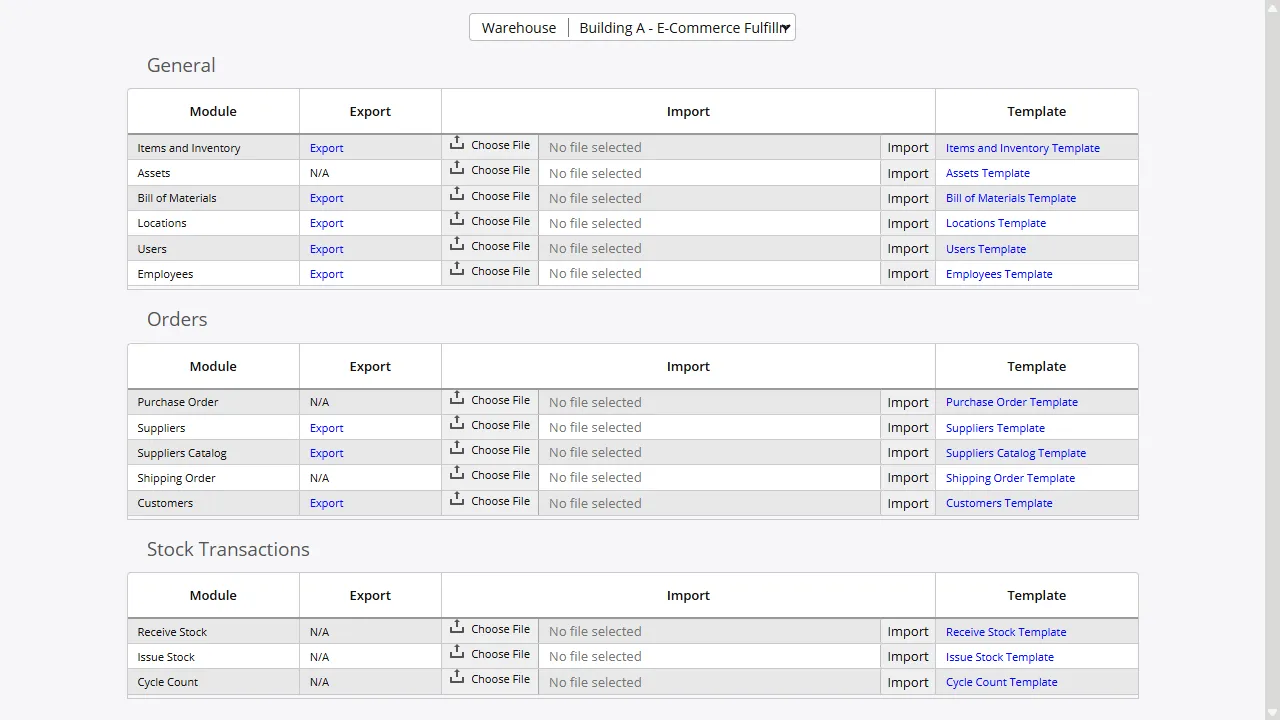
What Gets Synchronized
We export the records that matter most for keeping warehouse and accounting aligned. Item master data - part numbers, descriptions, costs, prices, and GL account mappings (COGS, Sales, Inventory Asset) - stays current in QuickBooks. Vendor and customer records carry addresses, contact details, and account identifiers. Purchase orders and invoices move with line items, quantities, and pricing.
We have worked with QuickBooks Desktop across many client implementations, and have years of experience mapping its data structures to InventoryPro. During implementation, our team reviews your chart of accounts and item categories to make sure the field mapping handles your specific configuration.
Shipped Order Invoicing
When warehouse staff complete and ship an order in InventoryPro, the integration creates a corresponding invoice in QuickBooks with the customer, ship-to address, line items, pricing, terms, shipping method, and sales rep. Your finance team gets invoice-ready records without manual data entry.
Similarly, received purchase orders export with a linked item receipt in QuickBooks, so your AP team can see what the warehouse actually received. The integration processes only completed transactions - open or canceled orders are not sent to QuickBooks.
Scheduled Sync and Error Handling
The export runs on a configurable timer interval. Most organizations choose hourly or daily cycles depending on transaction volume. Each cycle processes all records flagged since the last run, and errors are logged to a database table so your team can review integration health at a glance.
If a record fails to sync - due to a missing field, a data format mismatch, or a connectivity issue - it is flagged for review without blocking the rest of the batch. This means one problematic record does not hold up hundreds of valid transactions.
Connect Your Warehouse to QuickBooks
Our team sets up the QuickBooks integration and maps your data during implementation. Contact us to discuss your accounting workflow.